


User Manual
External Video Menu
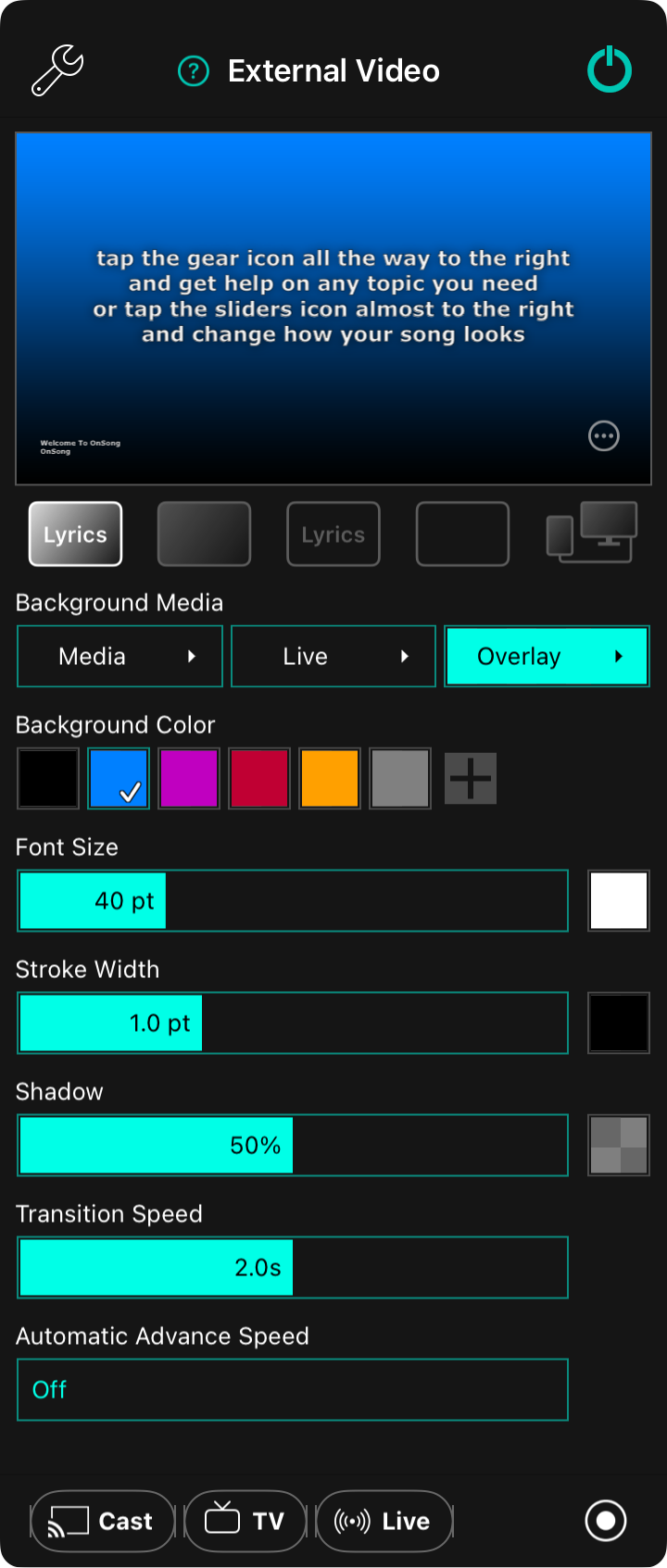
The external video menu is used to configure Lyrics Projection, or to toggle into Stage Monitor in OnSong. The menu contains the following options:
Settings
Tap on the wrench icon in the upper-left to access External Video Settings directly from the menu.
Preview
The top portion of the menu displays a preview of what will appear on the external screen. You can tap on the preview section to flip through lyric sections to preview. This does not display the lyrics on the external device. Rather, you will need to tap on the lyrics in the song viewer instead.
Display Options
You can tap on the circle with dots icon in the lower right corner of the preview to display a menu with additional options.
Mode Buttons
Five buttons situated below the preview area are used to control the combination of lyrics and background to output to the external screen. In addition, OnSong can be configured for stage monitor mode using the fifth button.
- Lyrics and Background displays the lyrics on a colored background, gradient, image, or video.
- Background Only clears the lyrics from the screen but retains the colored background, gradient, image, or video.
- Lyrics Only will remove the colored background, gradient, image, and video leaving only the lyrics on the screen.
- Blackout Mode removes the lyrics and background, displaying only black.
- Stage Monitor Mode turns on Stage Monitor Mode independently of lyrics projection modes.
Background Media
The background of lyrics is composited by the following layers that appear on top of the background color. Each of these buttons can be tapped to toggle the layer on and off as well as configured, either by tapping and holding on the button, or by tapping on the arrow button to the right.
Media
This button lets you toggle and choose still or motion graphics behind your lyrics. You can choose different images and videos by configuring this layer. Configuring this layer opens the Media Picker.
Live
This lets you toggle and configure live video which uses camera input with optional special effects to make you the star of the show. This is great for engaging audiences online with live-streaming, training with video conferencing apps, or for live video switching for more camera angles on stage. You configure the live video and effects in the Live Video Configuration Editor.
Overlay
To improve readability, you can apply colored textures on top of the other background layers. This gives you another way to get creative and build engaging backgrounds. You can configure the overlay and its color in the Overlay Picker.
Appearance and Transitions
Use the sliders at the bottom half of the screen to address how the lyrics projection appears.
Background Color
In this area you can pick a background color to display. Options include black, blue, purple, red, goldenrod, and grey. But you're not limited to those preset colors. You can also add new colors or customize the color swatches in this palette using the Color Picker.
Font Size
The size of the font can be adjusted between 24 and 84 points using the font size slider. The default size is 40 points. When the Adjust Lyrics To Fit option is enabled in Lyrics Projection Settings, the font will not be able to be fully increased as the font will be limited to prevent lines from wrapping.
To the right is a Color Picker that lets you choose the color of the text. The default color is white.
Stroke Width
The stroke is a border around each character in lyrics. The font appears in white text with an outline to separate it from the background. Adjust the stroke width from between 0 and 3 points. Default is 1 point.
To the right is a Color Picker that lets you choose the color of the stroke. The default color is black.
Shadow
Behind lyrics appears a blurry shadow to help lift the text off the background. The slider adjusts the radius of the shadow relative the font size from between 0% and 100%. The default is 50%.
To the right is a Color Picker that lets you choose the color of the shadow. The default color is 50% opaque black.
Transition Speed
The transition speed determines how quickly lyrics and background changes take place. The speed of the transition is set in seconds between 0 and 4 seconds. The default is 2.0 seconds. Overly fast transitions may experience a delay in outputted to the external screen, especially on older or wireless hardware.
Automatic Advance Speed
The automatic advance speed is used to cycle through the sliders in a song after a delay. By default, automatic advance is turned off by default. The time to show each slide can be set between 1 and 60 seconds.
Sending Video
External video output can be sent to various devices. The bottom bar allows you to choose the method that works for you:
Google Cast
In the lower left corner, tap Cast to connect to or disconnect from one or more Google Cast devices on your network for wireless lyrics projection. The button turns red while a device is connected.
Smart TVs
You can connect to Smart TVs that run the OnSong Display app, or are AirPlay video receivers such as an AppleTV.
Live Streaming
Tap Live to open Live Streaming, which sends the lyrics projection or stage monitor to NDI® receivers or to a streaming service such as YouTube or Facebook. The button turns red while you’re live. This is a different control from the Live layer under Background Media, which adds camera video behind the lyrics.
Broadcast
On the bottom-right corner is a button that enables app-to-app broadcast on iPads and iPhones. This will send the video of the external video screen to a compatible app for live-streaming such as Facebook, Zoom, or record to your photo library.
Lyrics projection and stage monitor modes can both be enabled at the same time. In this case, the stage monitor output is routed to the physically connected wired video device such as HDMI, VGA, or via the AirPlay output. This allows lyrics projection settings to continue to be modified for other wireless devices such as Google Cast or Connected TVs. On macOS devices, both lyrics projection modes and the stage monitor mode can be toggled on and off and separate windows will be shown or hidden accordingly. These windows can be made full screen on certain outputs.


