


Panduan Pengguna
Connect to Smart TVs
The Connect to TV screen sends OnSong to a smart TV on your Wi-Fi network, with no cables or adapters. Tap the TV button in the External Video Menu to open it. The screen lists TVs running the free OnSong Display app, along with any AirPlay receivers OnSong finds.
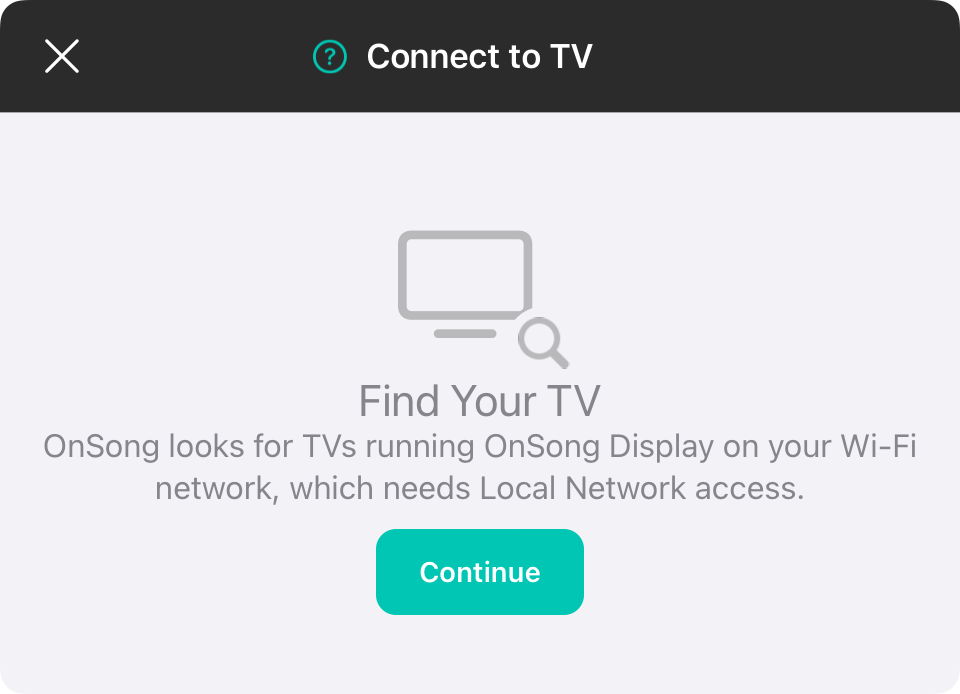
Find Your TV
OnSong needs Local Network access to look for TVs on your Wi-Fi network. The first time you open this screen, tap Continue and allow Local Network access. If access was turned off, tap Open Settings and turn on Local Network for OnSong.
OnSong Display
To show OnSong on a TV, install the free OnSong Display app on a compatible smart TV, such as an Amazon Fire TV, Samsung or LG TV. Open the app on the TV and make sure the TV and your OnSong device are on the same Wi-Fi network.
While OnSong is looking, the screen shows Looking for TVs… with a spinner in the upper right. If nothing turns up, it shows No TVs Found. Tap Scan to look again, or tap Get OnSong Display to open this page.
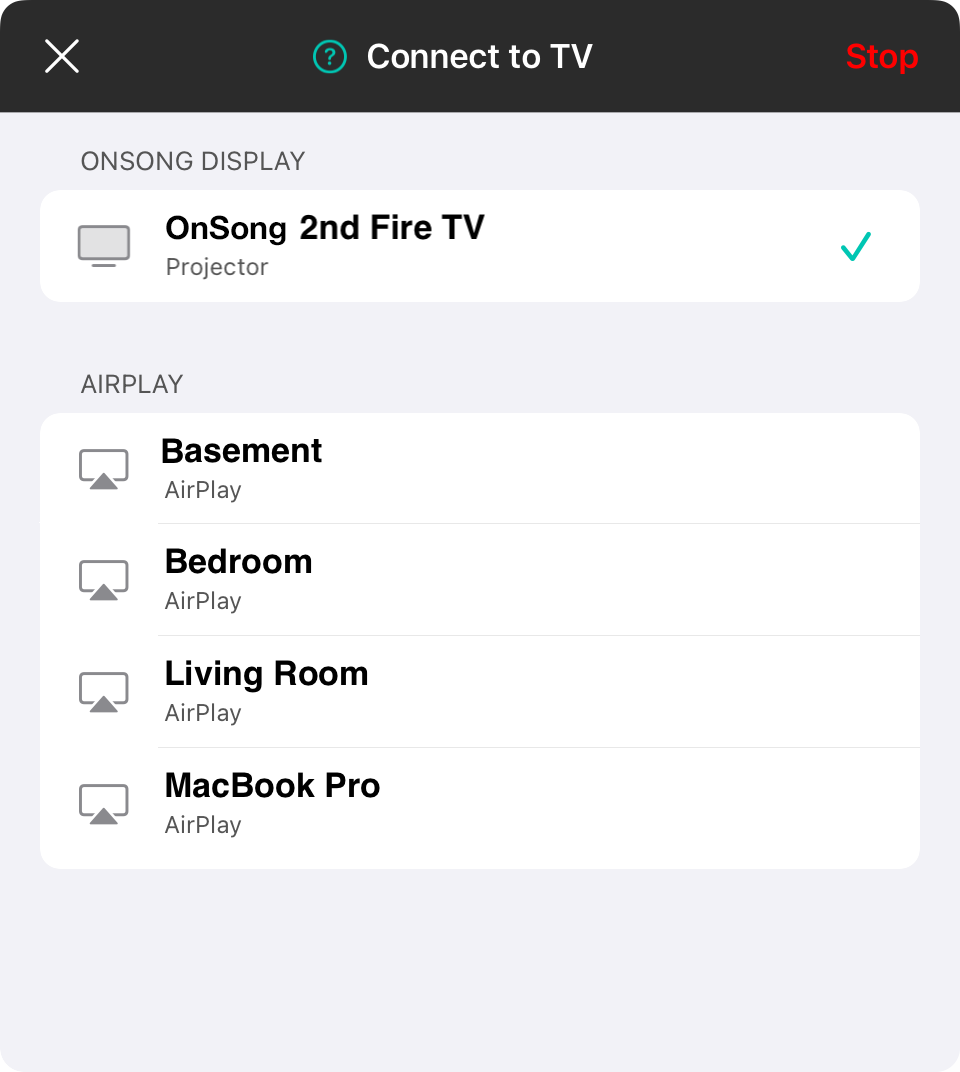
Choose Display
Tap a TV in the list and choose what it should show:
- Projector shows lyrics for the audience.
- Stage Monitor shows the chart view for performers.
You can connect more than one TV at a time. Tap another TV to add it, or tap a connected TV to change what it shows.
Stop
To disconnect a TV, tap it and choose Stop, or swipe it to the left and tap Stop. The Stop button in the upper right disconnects the TV that is showing OnSong and closes the screen. When more than one TV is connected, it becomes Stop All, which asks you to confirm before disconnecting them all.
AirPlay
AirPlay receivers, such as an Apple TV, appear under AirPlay. A receiver OnSong is showing on is marked Connected. AirPlay is started and stopped from Control Center, so tapping a receiver shows the steps for Connecting with AirPlay or for disconnecting from it.
The first time you connect, the TV may ask whether to allow OnSong. Until you choose Yes on the TV, its row asks you to do so. Once connected, the TV shows a checkmark and the mode it is showing.
If OnSong can’t reach a TV, make sure OnSong Display is open on the TV and that it is on the same Wi-Fi network as your device.


